· 7 min read
macOS 27 Menu Bar: New Expand Button, Why Bartender and Ice Broke
macOS 27 Golden Gate adds a native expand button for overflow menu bar icons — and breaks Bartender, Ice, Thaw, and Hidden Bar. Here's what changed.
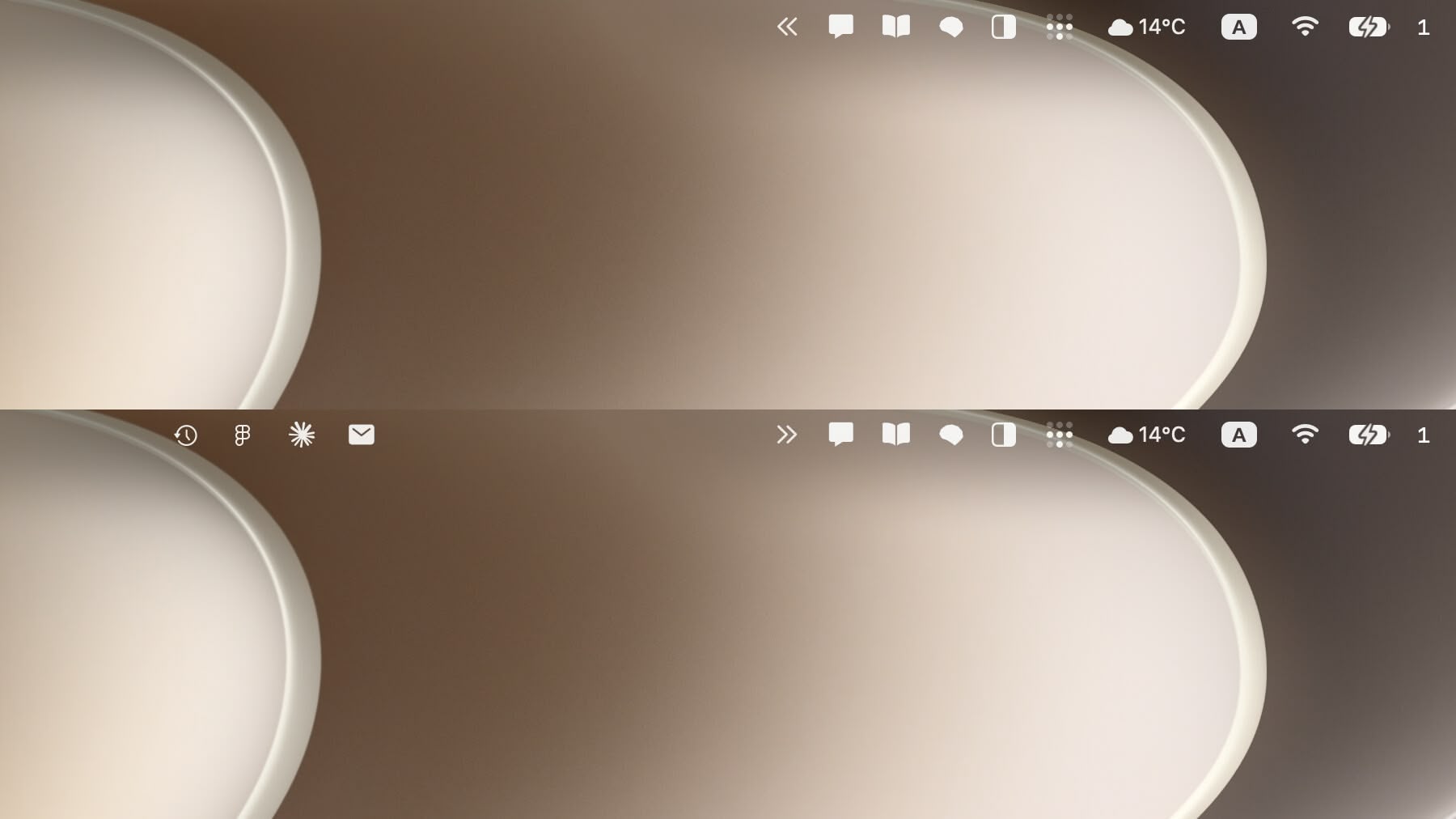
Apple announced macOS 27 Golden Gate at WWDC on June 8, 2026, and the first developer beta includes the biggest menu bar change in years: a native expand/collapse button for overflow icons. At the same time, an under-the-hood rework of how the menu bar is rendered has broken the major third-party menu bar managers — Bartender, Ice, Thaw, Hidden Bar, Barbee, Sane Bar, and Glow all stopped working on beta 1.
If your menu bar workflow depends on any of these tools, here’s what changed, what the new built-in feature actually does, and how to plan your upgrade.
Last updated June 11, 2026. Based on macOS 27 Golden Gate developer beta 1; details may change before the expected fall release.
What’s New: A Built-In Overflow Button
When your menu bar runs out of room — most commonly because the notch on MacBook Pro and MacBook Air displays eats the middle of the bar — macOS 27 now shows an arrow button at the edge of the icon area. Click it and the hidden items expand to the left of the notch; click again and they collapse back.
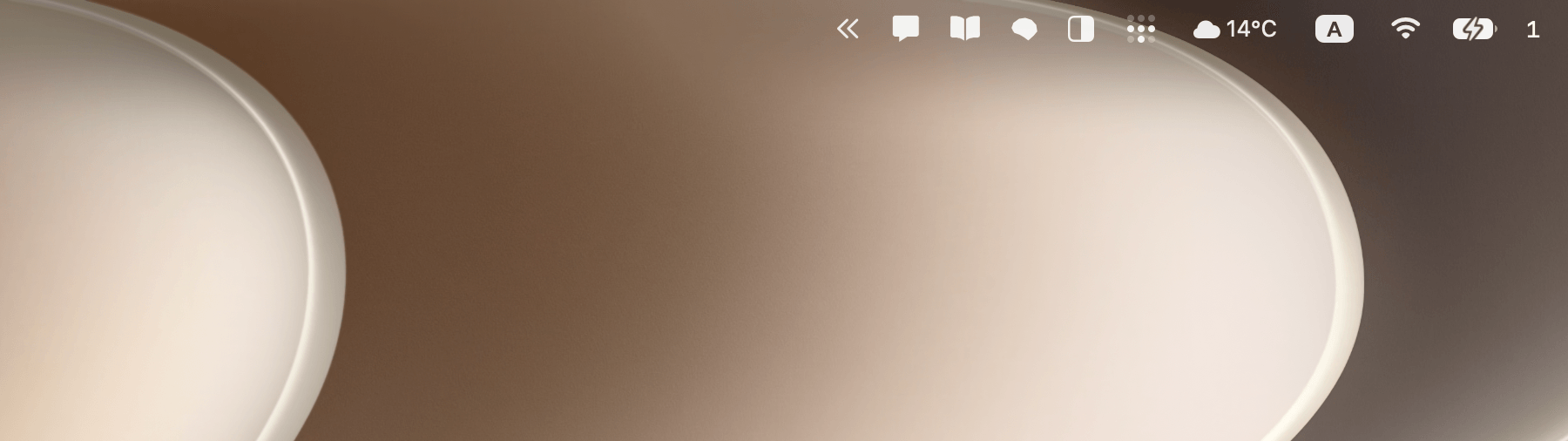
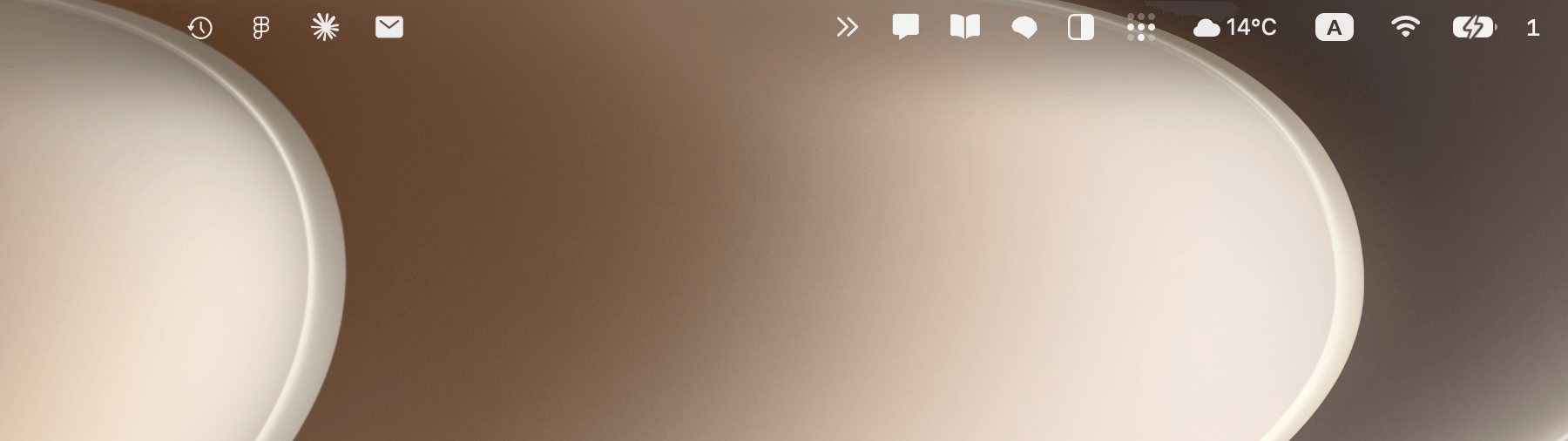
This is the feature Mac users have been requesting since the notch arrived with the 2021 MacBook Pro. Until now, icons that didn’t fit simply vanished: they were still “there,” but rendered behind the notch with no way to click them. Apple’s previous answer in macOS Tahoe was a Menu Bar section in System Settings that let you toggle icons off entirely — helpful, but it forced you to choose which icons to lose. The new overflow button lets you keep your icons and reach the hidden ones on demand, within the limits of available menu bar space.
Combined with what shipped in Tahoe, the native toolkit now covers:
- Show/hide toggles for system and third-party icons (System Settings → Menu Bar)
- Command + drag to rearrange or remove icons
- Expand/collapse arrow for icons that don’t fit (new in macOS 27)
For a refresher on the first two, see our guide to adding and removing menu bar icons.
What the Native Feature Doesn’t Do
Compared to a dedicated menu bar manager, the built-in overflow button has real limitations. As of beta 1, there’s no sign of:
- Conditional visibility. Bartender can show an icon only when it’s active — Dropbox appears while syncing, then hides again. The native feature is a manual expand/collapse with no rules engine.
- Styling control. Ice and its fork Thaw can give the menu bar a custom background color, outline, shape, and notch-aware split so text stays legible on any wallpaper. Apple offers none of this.
- A secondary drop-down bar. Hidden icons slide out to the left of the notch, in the bar itself. If you have a lot of icons, there still may not be room to show them all at once — unlike the floating bar Ice provides.
- Custom ordering profiles. You can’t save layouts or switch icon sets per context.
Apple routinely adds options between beta builds, so some of these gaps may close before release — but the beta 1 feature is a basic toggle.
If you only ever needed “let me reach the icons the notch swallowed,” macOS 27 has you covered. If you relied on the deeper customization, the native feature will feel basic.
Why Every Menu Bar Manager Broke
The bigger story for power users is architectural. Through macOS Tahoe, the system represented every menu bar status item as its own small window. Menu bar managers were built on that detail: they could enumerate those windows, capture them, reposition them, and hide them — that’s how Bartender’s hidden section, Ice’s secondary bar, and Hidden Bar’s collapse all worked.
In macOS 27, the entire menu bar is rendered as a single window. The per-icon windows that third-party tools manipulated no longer exist, which is why the breakage is universal rather than app-by-app. If Bartender or Ice is not working after installing the macOS 27 beta, this is why:
- Ice: not functional on beta 1 (tracked in Ice issue #954)
- Thaw (the Ice fork): same failure
- Bartender, Barbee, Sane Bar, Glow, Hidden Bar: broken on beta 1
- BetterTouchTool: its menu bar features broke, though its developer has already shipped a partial workaround (a “Load Menu Bar Layout” action) while noting the techniques are unofficial and Apple could block them during the beta cycle
The breakage across these apps — and the single-window explanation — is documented in detail in this BetterTouchTool community thread tracking the Golden Gate changes.
This isn’t the usual “wait for a point update” beta breakage. The mechanism these apps were built on is gone, and each developer needs to either find a new supported path or rebuild on workarounds Apple may not allow. Whether each tool adapts is up to its developer — some have already shipped partial workarounds, others haven’t responded yet. Check release notes before relying on any of them.
What to Do Before You Upgrade
- Don’t upgrade your main Mac to the beta if you depend on a menu bar manager. Nothing works out of the box on beta 1, and workarounds may come and go between builds.
- Try the native controls first. Between Tahoe’s System Settings toggles and the new overflow arrow, a lot of people no longer need a third-party hider at all. Fewer background apps means fewer things to break on the next release.
- Watch your app’s release notes. Ice and Thaw track Golden Gate compatibility in their GitHub issues; for Bartender, watch its release notes. Check before — not after — you update this fall.
- Audit what’s actually in your bar. Many apps add a menu bar icon you never use, and most let you disable it in their own settings. The emptier your bar, the less you need to manage it. Our Bartender alternatives guide covers the trade-offs between the remaining options.
Where Badgeify Fits In
Badgeify approaches the menu bar from the opposite direction. Menu bar managers hide icons that other apps created; Badgeify adds icons — it puts any app in your menu bar with a live notification badge, so you can see unread counts for Slack, Discord, Teams, or Mail at a glance even with the Dock hidden.
That distinction matters in the macOS 27 transition for two reasons:
- Different mechanism. Badgeify creates its own status items through the standard macOS status item API rather than capturing other apps’ windows, so the architectural change that broke menu bar hiders doesn’t apply to it. We’re validating Badgeify against each Golden Gate beta and will ship any needed updates before the public release.
- Different job. The new native overflow button manages icon visibility, but it doesn’t add anything to your menu bar. There’s still no built-in way to pin an arbitrary app to the bar or surface its unread count there. That gap is exactly what Badgeify fills, and it pairs cleanly with the native expand/collapse instead of competing with it.
If macOS 27’s native controls end up replacing your menu bar hider, a sensible 2026 setup looks like: native toggles for decluttering, the new arrow for overflow, and Badgeify for the apps whose notifications you actually need to see.
The Bigger Picture
Apple has been chipping away at this category for two releases now — Tahoe added per-app menu bar toggles, and Golden Gate adds overflow handling while removing the architecture third-party managers were built on. Whether that’s “Sherlocking” or overdue platform hygiene depends on your perspective, but the direction is clear: basic menu bar management is becoming an OS feature, and third-party tools will need to justify themselves with capabilities Apple won’t build.
For most users, that’s good news. The notch problem that pushed menu bar managers into the mainstream — a category that long predates notched Macs — now has a one-click answer built into the system: no accessibility permissions, no background agent, and far less likely to break on the next update.
We’ll update this article as Golden Gate moves through the beta cycle and menu bar developers ship their responses.
Related Reading
- How to Fix Mac Menu Bar Icons Disappearing Behind the Notch
- How to Add/Remove Icons from the Menu Bar on macOS
- Best Bartender Alternatives to Manage Your Mac Menu Bar
Ready to Transform Your Mac Menu Bar?
Perfect companion for Bartender & Ice users. Ideal for productivity enthusiasts who prefer a cleaner desktop.